
Newsmatic Premium Theme Documentation
- 1. Getting Started
- 2. Installation
- 3. License Integration
- 4. Pre-Built Websites
- 5. Demo Import
- 6. Category Colors
- 7. Global Option
- 8. Header Builder
- 9. Ticker News
- 10. Main Banner
- 11. Front Section
- 12. Your Opinions
- 13. Theme Footer
- 14. Bottom Footer
- 15. Blog . Archive . Single
- 16. Pages
- 17. Colors
- 18. Typography
- 19. Header Image
- 20. Background
- 21. Menu
- 22. Widgets
- 23. Homepage Settings
- 24. Yoast SEO Breadcrumbs
1. Getting Started
We would like to thank you for choosing Newsmatic.
Now, it’s so easy to make each website unique with Newsmatic. Newsmatic Pro is suitable WordPress Theme for news magazine, lifestyle, fashion, photography, food, beauty, helps you to write articles and blog posts in a specific niche. We’ve added incredible, premium, and customizable features for a high-quality browsing experience from all types of devices. The sophisticated design, clean coding, responsive and multiple layouts, intelligent ads, and spectacular grid system will make your digital experience smooth and satisfying.
Newsmatic Pro is also built with input from SEO Experts. To make the theme Search Engine and Mobile friendly features have been enabled that will help rank your web pages on search engines and load the pages faster on user’s devices. Check out our beautiful pre-built demos now: All pre-built demos
2. Installation
- Log in to your WordPress Administration Panel.
- Click on Appearance -> Themes -> Add New
- Search for “Newsmatic” in the search field.
- You can upload the theme zip file if you have downloaded before.
- Click on Install button and then Activate the theme.

Pro Version
Buy Newsmatic premium version from the blazethemes store you will get email once your purchase is completed. Download the theme zip from the link given in the email or download the latest version of the theme from “My Account” page
- Log in to your WordPress Administration Panel.
- Click on Appearance -> Themes -> Add New
- Upload the theme zip file that you have downloaded.
- Click on Install button and then Activate the theme.

Download the latest version of the Newsmatic theme from https://wordpress.org/themes/newsmatic page.
- Unzip the downloaded zip file.
- Upload the unzipped file inside public_html/wp-content/themes/.
- Now, activate the theme through Dashboard > Appearance -> Themes
- Activate the Newsmatic and Click on “Customize” in the Appearance Menu in the Dashboard. Now you can customize or modify according to your choice.
Pro Version
Buy Newsmatic premium version from the blazethemes store you will get email once your purchase is completed. Download the theme zip from the link given in the email or download the latest version of the theme from “My Account” page
- Unzip the downloaded zip file.
- Upload the unzipped file inside public_html/wp-content/themes/.
- Now, activate the theme through Dashboard > Appearance -> Themes
- Activate the Newsmatic Pro and Click on “Customize” in the Appearance Menu in the Dashboard. Now you can customize or modify according to your choice.
3. License Integration
Pro Version
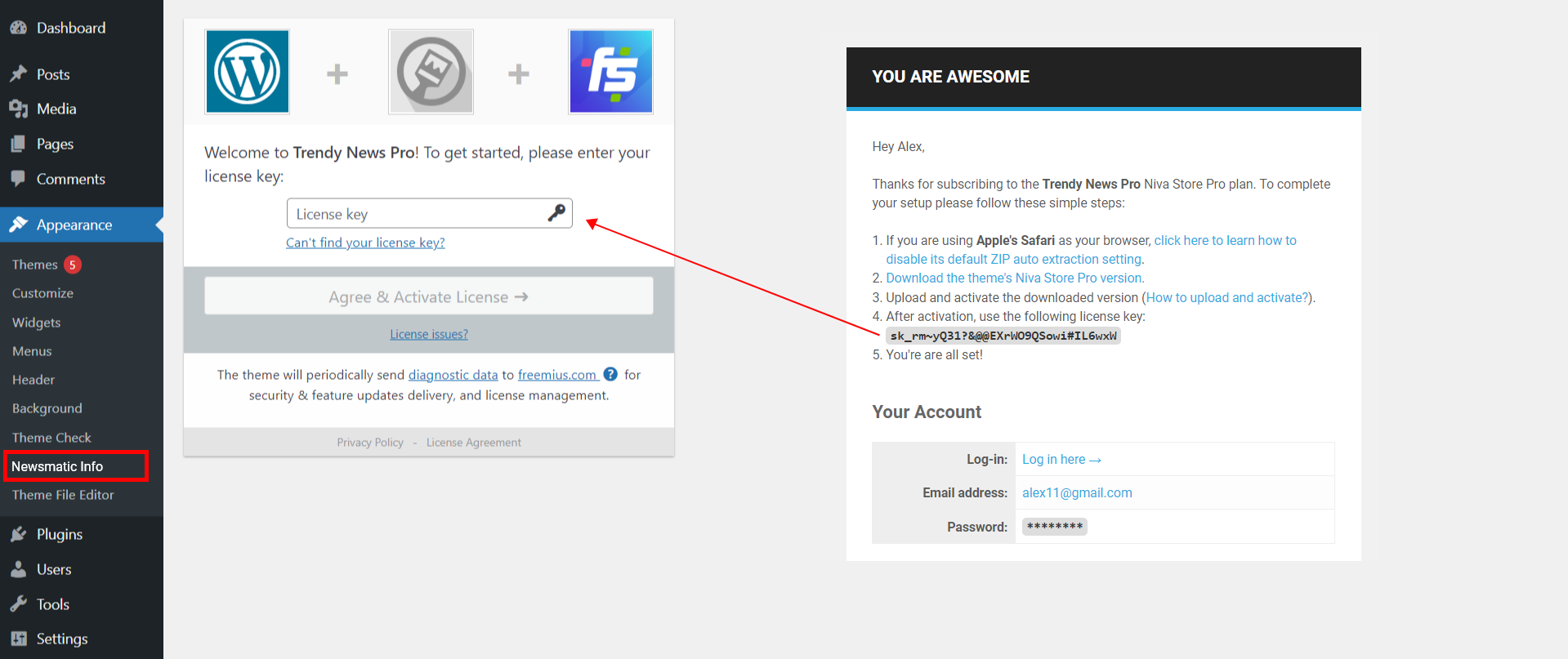
You need to activate the license key in order to receive Automatic Theme Updates which includes featured updates, security updates and bug fixes. To activate the license key,
- First you have to find the license key that you will get in your purchase confirmation email.
- You can also find your license key in “My Account” page of blazethemes.com
- Now, go through your dashboard > appearance > Newsmatic License
- Paste the license key in the input field and click “Activate License”
4. Pre-Built Websites
It is hard to mix all the right elements when you try to create the perfect site. So we have created some beautiful and flexible pre-built websites that make you easier. Pre-built websites are easy and quick to install in your WordPress. Our Pre-built websites were carefully tested so you don’t have to create your site everything from scratch. Just one click and you are good to start.

5. Demo Import
After you activate Newsmatic in your website. You can use demo import to make your site look like one of our available demos.
- Go to Appearance > Newsmatic Info
- You can see list of all demos in this page
- If you have not install/activate the Blazethemes Demo Importer plugin Click on install/activate demo importer button just above the demos listing section
6. Category Colors
To work on Category Colors
- Dashboard > Appearance > Customize > Category Colors
- Change category colors

7. Global Option
To work on SEO / Miscs
- Dashboard > Appearance > Customize > Global Option > SEO / Miscs
- Toggle to make website schema ready
- Choose published or modified date to show from dropdown
- choose date format applied to single and archive pages from dropdown

To work on Preloader
- Dashboard > Appearance > Customize > Global Option > Preloader
- Toggle to enable site preloader

Pro Version
- Choose available preloader layouts

To work on Website Styles
- Dashboard > Appearance > Customize > Global Option > Website Styles
- Toggle to show website block top border
- Choose border top color

Pro Version
- Toggle to enable website frame
- Customize frame width and frame color
- Toggle to enable website block top border
- Customize website block top border width and color
- Customize block box shadow and color

The layout of your website can define its success. Get the wrong design and people will be confused and destroying the user experience.
To work on Website Layout
- Dashboard > Appearance > Customize > Global Option > Website Layout
- Choose website layout to box-width or full width

Animation / Hover Effects can personalize your site and create delightful experiences for your visitors. When a website visitor or user hovers over an animated element like a link or button for example, it can change color, grow, rotate and more. This is enjoyable for the visitor or user and shows that your site is working. We have provided five post title hover effects and five image hover effects in pro version and one each in free version.
To work on Animation / Hover Effects
- Dashboard > Appearance > Customize > Global Option > Animation / Hover Effects
- Change post title hover effect from dropdown
- Change image hover effects from dropdown

Pro version
- Toggle to enable site wow animation
- Choose title hove effects and image hover effects from one to five

To work on Buttons
- Dashboard > Appearance > Customize > Global Option > Buttons
- Change button icon and button label

Pro Version
- Customize button font size
- Select border, border width and color to buttons
- Customize padding to button

A proper sidebar can be very useful to your website as it can: Contain navigation menus to quickly guide the visitors. Highlight key information, such as ads, contact form, or recent news.
To work on Sidebar Options
- Dashboard > Appearance > Customize > Global Option > Sidebar Options
- Change sidebar layouts to content, left sidebar-right content, left content-right sidebar, left sidebar-middle content-right sidebar

Pro Version
- Change sidebar layouts to left both sidebar right content and right both sidebar left content

Breadcrumbs are a secondary navigation aid that helps users easily understand the relation between their location on a page. It can show users how the page they are on is categorized on the site or the path the user took to find it.
To work on Breadcrumb Option
- Dashboard > Appearance > Customize > Global Option > Breadcrumb Option
- Toggle to show breadcrumb
- Choose breadcrumb type from dropdown after installing respective plugins

Pro Version
- Choose display breadcrumb on before main container or before inner container

- Click to Design Option
- Change breadcrumb text color, link color and background color
Adding a sticky scroll-to-top button to your website adds further ease of navigation to your website by allowing a user to scroll to the top of any given web page with the click of a button.
To work on Scroll To Top
- Dashboard > Appearance > Customize > Global Option > Scroll To Top
- Select scroll to top visibility on different devices
- Choose button icons and button label
- Choose scroll to top button alignment
- Click to Design Option
- Choose scroll to top icon text color / hover color and background color / hover color

Pro Version
- Change button font size
- Click to design option
- Add border and border hover color to scroll to top button
- Customize border padding

8. Header Builder
To work on Header Builder
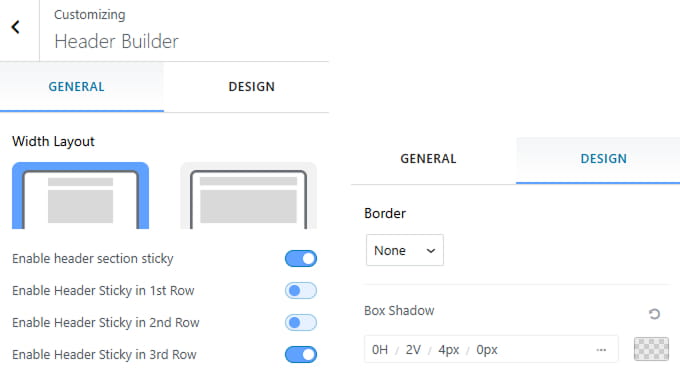
- Dashboard > Appearance > Customize > Header Builder
- Select section width
- Toggle to enable header section sticky
- Toggle to enable header sticky in 1st row
- Toggle to enable header sticky in 2nd row
- Toggle to enable header sticky in 3rd row
- Choose header background color
Design Tab
- Click to design tab
- Customize border and box shadow
Pro Version
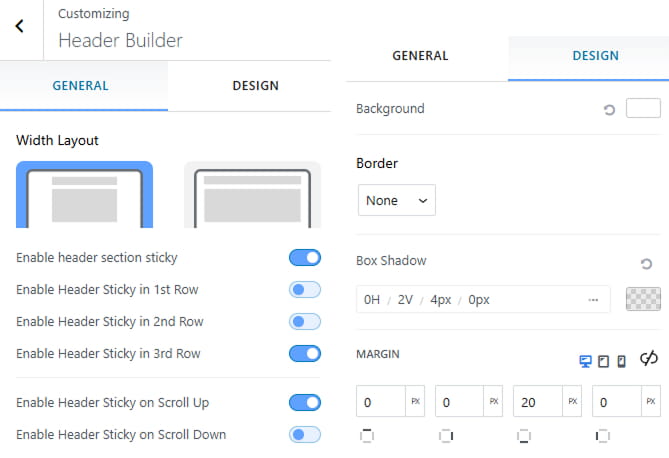
- Dashboard > Appearance > Customize > Header Builder
- Select section width
- Toggle to enable header section sticky
- Toggle to enable header sticky in 1st row
- Toggle to enable header sticky in 2nd row
- Toggle to enable header sticky in 3rd row
- Toggle to enable header sticky on scroll up
- Toggle to enable header sticky on scroll down
Design Tab
- Click to design tab
- Choose header background color
- Customize border, box shadow and margin
To work on Search
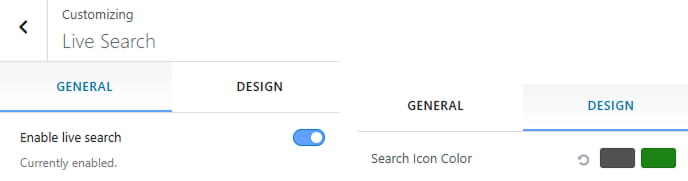
- Dashboard > Appearance > Customize > Header Builder > Search
- Toggle to enable live search
Design Tab
- Click to design tab
- Options to change the icon color.
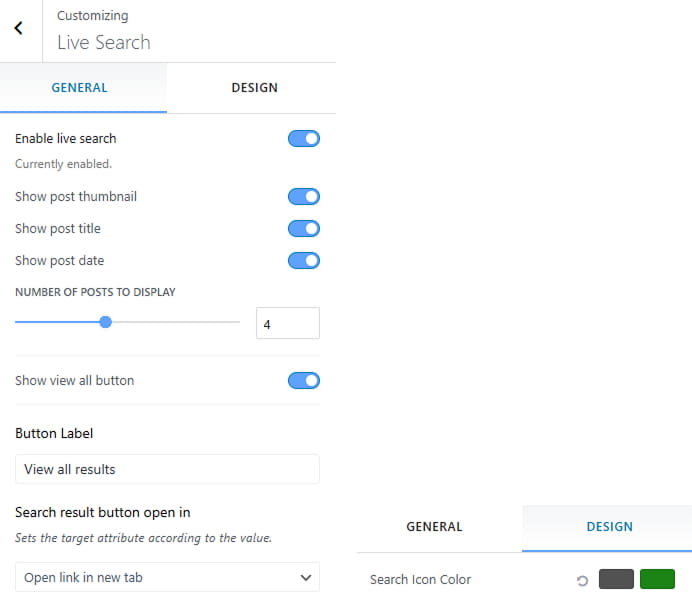
Pro Version
- Dashboard > Appearance > Customize > Header Builder > Search
- Toggle to enable live search
- Toggle to show post thumbnail
- Toggle to show post title and post date
- Choose number of posts to show
- Change view all button text, no results found text
- Select search result button open in from dropdown
Design Tab
- Click to design tab
- Options to change the icon color.
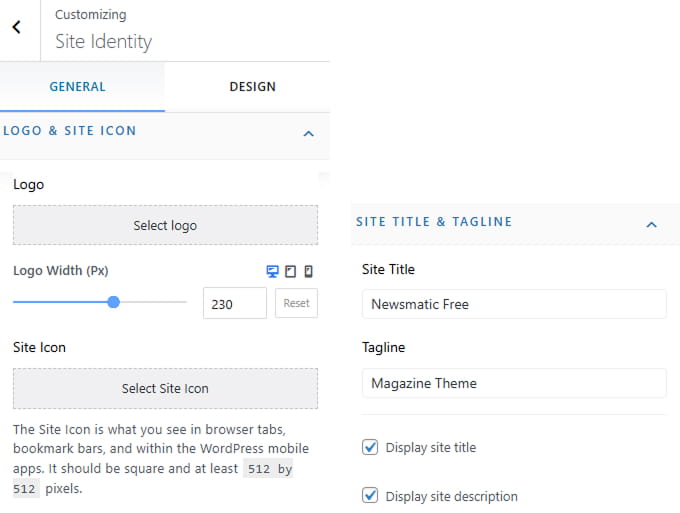
To work on Site Logo and Title
- Dashboard > Appearance > Customize > Header Builder > Site Logo and Title
- Upload the logo and site icon you want to set for your site.
- Select logo width
- Upload the logo for site icon as recommended it should be square and at least 512 * 512 pixels.
- Place site title and tagline
- Select site title tag ( For Frontpage )and site title tag ( For Innerpage ) from dropdown
- Click to display site title and display site description from checkbox
Design Tab
- Customize site title typography and site description typography
- Change site title color / hover color and site description color
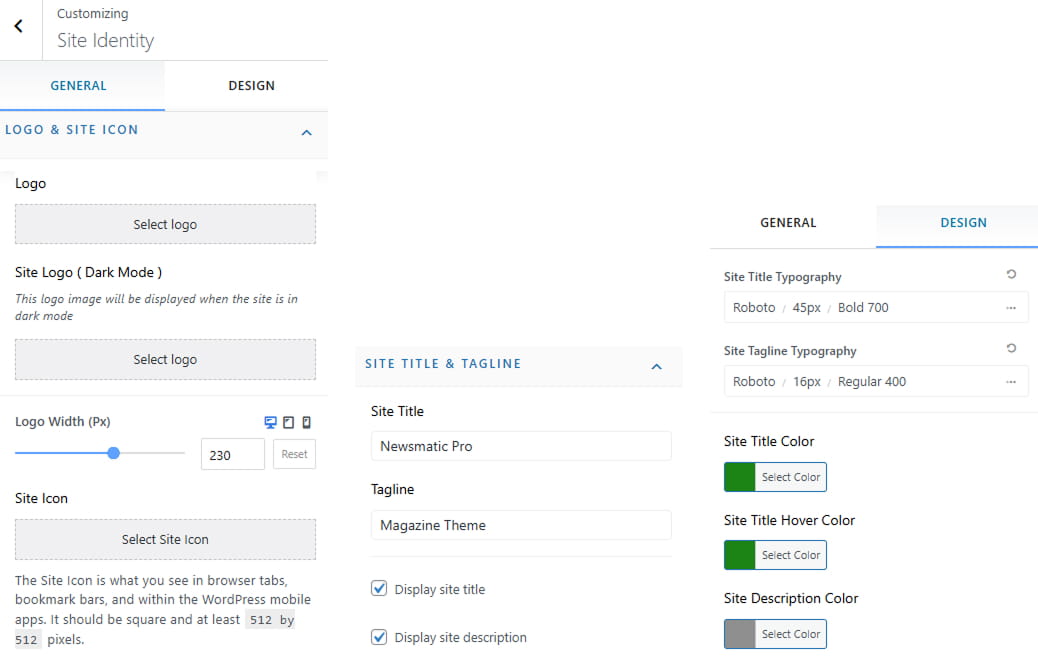
Pro Version
- Dashboard > Appearance > Customize > Header Builder > Site Logo and Title
- Upload the logo and site icon you want to set for your site.
- Upload site logo from “dark mode”
- Select logo width
- Upload the logo for site icon as recommended it should be square and at least 512 * 512 pixels.
- Place site title and tagline
- Click to display site title and display site description from checkbox
Design Tab
- Customize site title typography and site description typography
- Change site title color / hover color and site description color
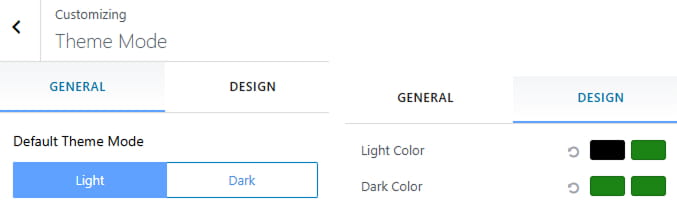
To work on Theme Mode
- Dashboard > Appearance > Customize > Header Builder > Theme Mode
- Choose default theme mode to light or dark
Design Tab
- Option to change light color and dark color
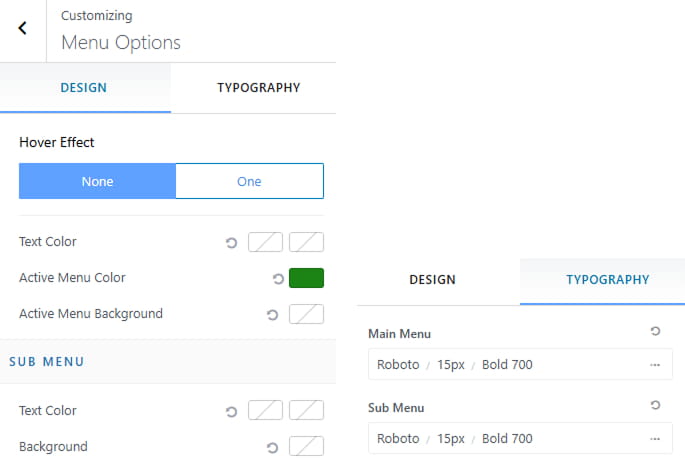
To work on Primary Menu
- Dashboard > Appearance > Customize > Header Builder > Primary Menu
- Choose hover effect from dropdown
- Option to choose text color
Pro Version
- Dashboard > Appearance > Customize > Header Builder > Primary Menu
- Choose hover effect from dropdown
- Option to choose text color, active menu color and active menu background color
- Option to choose sub menu text color and background color
Typography
- Click to typography option
- Customize main menu and sub menu typography
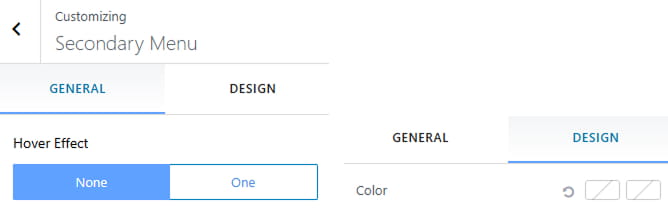
To work on Secondary Menu
- Dashboard > Appearance > Customize > Header Builder > Secondary Menu
- Choose hover effect from dropdown
- Options to change menu color
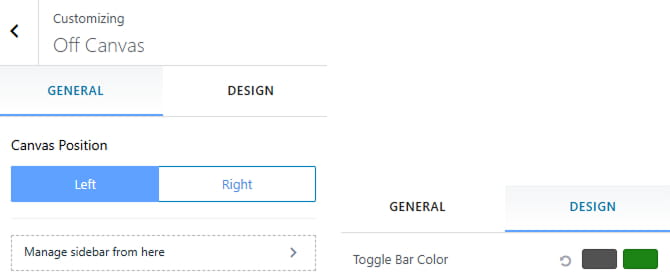
To work on Off Canvas
- Dashboard > Appearance > Customize > Header Builder > Off Canvas
- Choose canvas position align left or right
- Options to change off canvas icon color
Design Tab
- Click to design tab
- Option to change toggle bar color
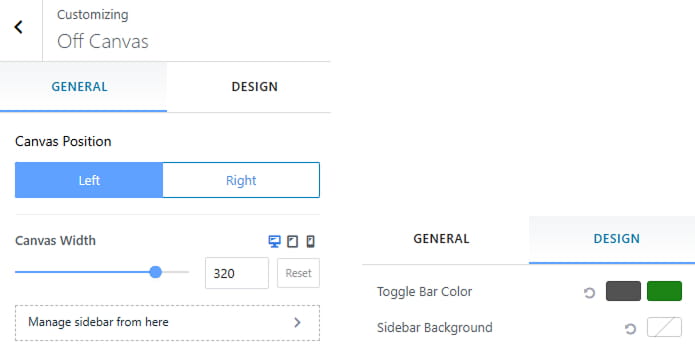
Pro Version
- Dashboard > Appearance > Customize > Header Builder > Off Canvas
- Choose canvas position align left or right
- Choose canvas width
- Options to change off canvas icon color
Design Tab
- Click to design tab
- Option to change toggle bar color and sidebar background
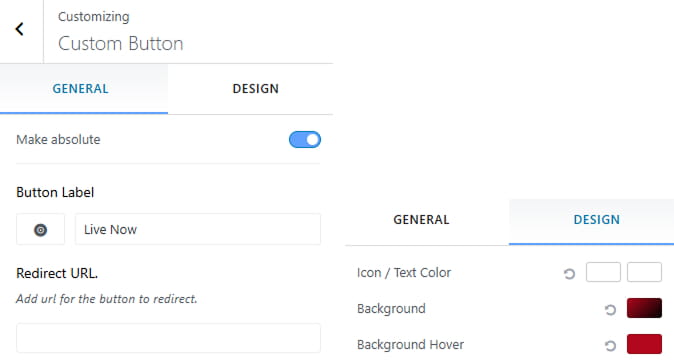
To work on Button
- Dashboard > Appearance > Customize > Header Builder > Button
- Toggle to make button absolute
- Place button label and choose button icon
- Add URL for the button to redirect
Design Tab
- Click to design tab
- Option to choose button icon/text color and button background / hover color
Pro Version
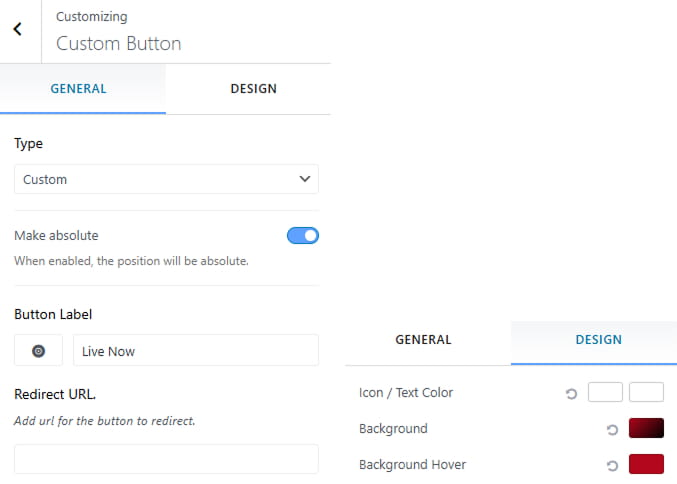
- Dashboard > Appearance > Customize > Header Builder > Button
- Choose type from dropdown
- Toggle to make button absolute
- Place button label and choose button icon
- Add URL for the button to redirect
Design Tab
- Click to design tab
- Option to choose button icon/text color and button background / hover color
To work on Date / Time
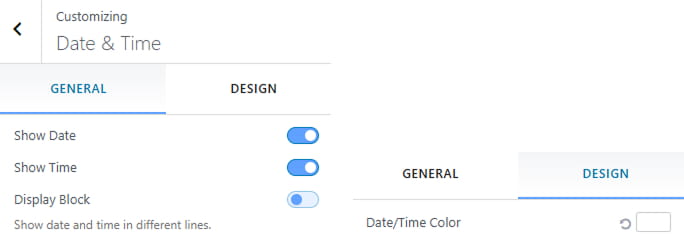
- Dashboard > Appearance > Customize > Header Builder > Date / Time
- Toggle to enable time and date
- Toggle to show date and time in different lines
Design Tab
- Click to design tab
- Option to change date and time color
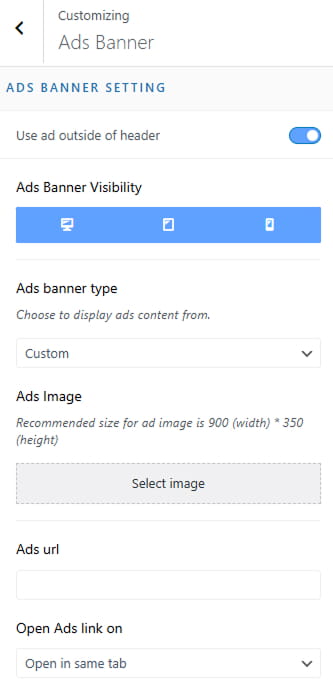
To work on Image Widget
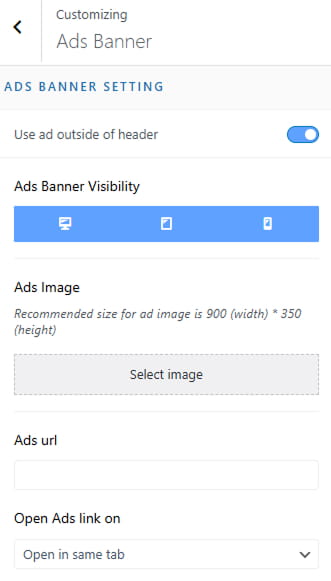
- Dashboard > Appearance > Customize > Header Builder > Image Widget
- Toggle to show advertisement outside the banner
- Choose advertisement banner visibility
- Upload Ads banner image
- Toggle to link URL
- Choose open advertisement link on from dropdown
Pro Version
- Dashboard > Appearance > Customize > Header Builder > Image Widget
- Toggle to show advertisement outside the banner
- Choose advertisement banner visibility
- Choose to display advertisement content from dropdown
- Upload Ads banner image
- Toggle to link URL
- Choose open advertisement link on from dropdown
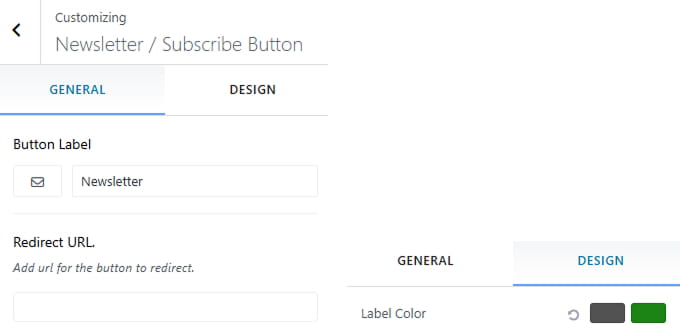
To work on Newsletter / Subscribe Button
- Dashboard > Appearance > Customize > Header Builder > Newsletter / Subscribe Button
- Set button label and button icon
- Add url for the button to redirect
Design Tab
- Click to design tab
- Option to change text color
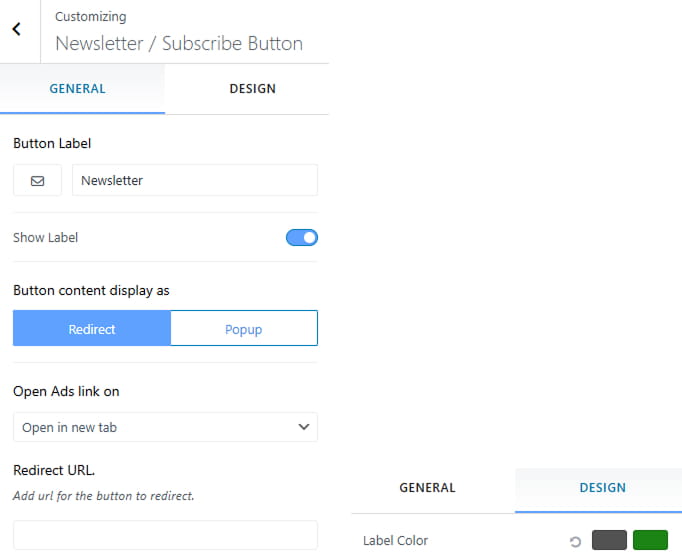
Pro Version
- Dashboard > Appearance > Customize > Theme Header > Newsletter / Subscribe Button
- Set button label and button icon
- Toggle to show button label
- Select button content display as
- Open Ads link on
- Choose open in new tab or same tab
- Add url for the button to redirect
Design Tab
- Click to design tab
- Option to change text color
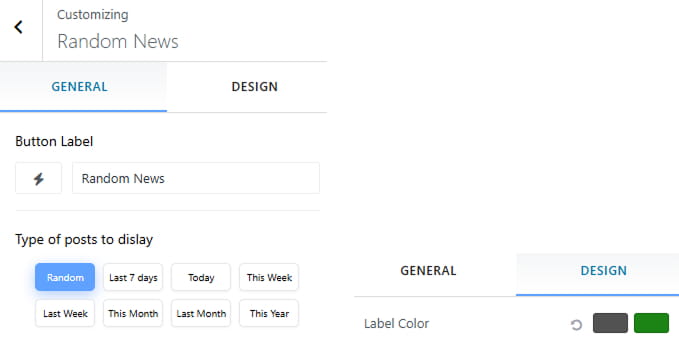
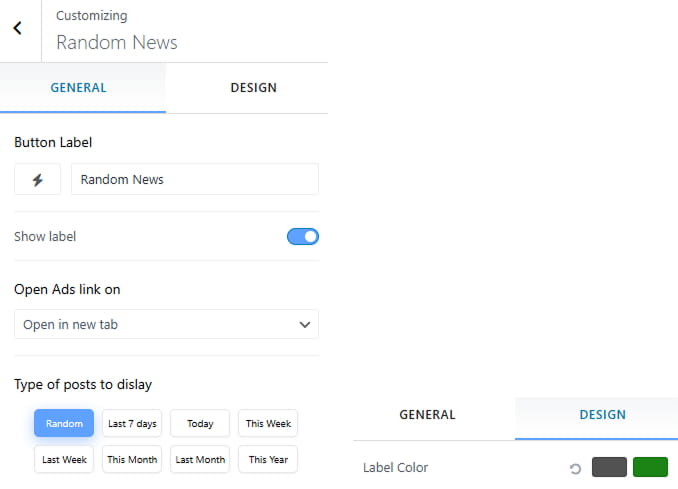
To work on Random News
- Dashboard > Appearance > Customize > Header Builder > Random News
- Set button label and button icon
- Select type of posts to display
Design Tab
- Click to design tab
- Option to change text color
Pro Version
- Dashboard > Appearance > Customize > Theme Header > Newsletter / Subscribe Button
- Set button label and button icon
- Toggle to show button label
- Open Ads link on
Design Tab
- Click to design tab
- Option to change text color
9. Ticker News
A news ticker or news feed is great for topics that are always changing like news, sports, stocks, cryptocurrency, daily deals, and any other fast-paced topic. The advantage is that any visitors that visit your website will be able to see your news feed. This may entice visitors to check out more of your content.
To work on Ticker News
- Dashboard > Appearance > Customize > Ticker News
- Choose to show ticker news on from dorpdown
- Choose ticker icon and Type ticker title on text field
- Select post by category or by title to show
- Choose available option to show all post, last 7 days, today, this week, last week, this month or last month

Pro Version
- Choose available ticker news layouts
- Select to show ticker on different pages from dropdown
- Choose orderby post from dropdown
- Hide/ show post thumbnail image from checkbox
- Choose number of posts to display
- Show ticker controllers from marquee setting

10. Main Banner
Your website banner is the main imagery that takes top billing on your homepage. Your homepage banner is the gatekeeper of your website, with a very important job.
To work on Main Banner
- Dashboard > Appearance > Customize > Main Banner
- Toggle to show main banner
- Arrange order of posts form orderby dropdown
- Select post by category or by title to show
- Choose available option to show all post, last 7 days, today, this week, last week, this month or last month
- Arrange order of posts form orderby dropdown
- Select the category to display
- Click to design option
- Re-0rder banner slider column and grid trailing posts

Pro Version
- Choose available banner layouts
- Choose number of posts to display
- Toggle to show post categories, post date and post excerpt
- Choose excerpt length to display
- Enable slider item to auto slide
- Enable slider controller arrows and pager dots from checkbox
- Click to design option
- Change content background color
11.1. Banner Layout One
- Change latest tab icon and title
- Change popular tab icon and title
- Select category from dropdown
- Change comment icon and title
- Click to design option
- Re-order latest, popular and comments tabs
- Click to eye icon to hide tab
- View Layout

11.2. Banner Layout Two
- Change popular post title
- Select category from dropdown
- Enable slider item to auto slide from checkbox
- Show slider controller arrows from checkbox
- Change slider direction from horizontal to vertical and vice versa
- View Layout

11.3. Banner Layout Three
- Arrange order of posts form orderby dropdown
- Choose number of posts to display
- Toggle to show post categories
- View Layout

11.4. Banner Layout Four
- Arrange order of posts form orderby dropdown
- Choose number of posts to display
- Toggle to show post categories
- View Layout

11. Front Section
To work on Front Section
- Dashboard > Appearance > Customize > Front Section
- Choose any section except reorder section
- Add available layouts as much as you want
- Click to eye icon to hide layouts
- Hold bar icon to drag vertically to re-order blocks
- Click to design section
- Customize section margin and padding
- Choose content background and section background

Reorder Section
- Click to reorder section
- Hold bar icon to drag vertically to re-order sections
- Click to eye icon to hide section

- Click to setting icon
- Change block title
- Toggle to show / hide post thumbnail
- Toggle to show post date, post author, post category, post comment, read more button
- Click to posts query pencil icon
- Change post orderby from dropdown
- Choose no. of posts to display
- To exclude post ids separate with commas or the enter key
- Select post by category or by title to show
- Choose available option to show all post, last 7 days, today, this week, last week, this month or last month
- Toggle to show view all icon
12.1.1. Grid Layout One

Pro Version
- Toggle to show post excerpt
- Change excerpt length to display
- Change number of columns to display
- Toggle to show view all icon
- Change available grid layouts
- Click to design option
- Customize section margin and content padding
- Change content background color and section background color
12.1.1. Grid Layout One

12.1.2. Grid Layout Two

12.1.3. Grid Layout Three

12.1.4. Grid Layout Four

- Click to setting icon
- Change Block title
- Toggle to show post date, post author, post category, post comment
- Click to posts query pencil icon
- Change post orderby from dropdown
- Choose no. of posts to display
- To exclude post ids separate with commas or the enter key
- Select post by category or by title to show
- Choose available option to show all post, last 7 days, today, this week, last week, this month or last month
- Toggle to show view all icon
12.2.1. Carousel Layout One

Pro Version
- Choose available carousel layouts
- Choose number of columns to show
- Show / hide dots, controller from checkbox
- Enable to loop items from checkbox
- Enable to auto slide from checkbox
12.2.1. Carousel Layout One

12.2.2. Carousel Layout Two

12.2.3. Carousel Layout Three

12.2.4. Carousel Layout Four

- Click to setting icon
- Change Block title
- Toggle to show post thumbnail
- Toggle to show post date, post author, post category, post comment, read more button
- Click to posts query pencil icon
- Change post orderby from dropdown
- Choose no. of posts to display
- To exclude post ids separate with commas or the enter key
- Select post by category or by title to show
- Choose available option to show all post, last 7 days, today, this week, last week, this month or last month
- Toggle to show view all icon
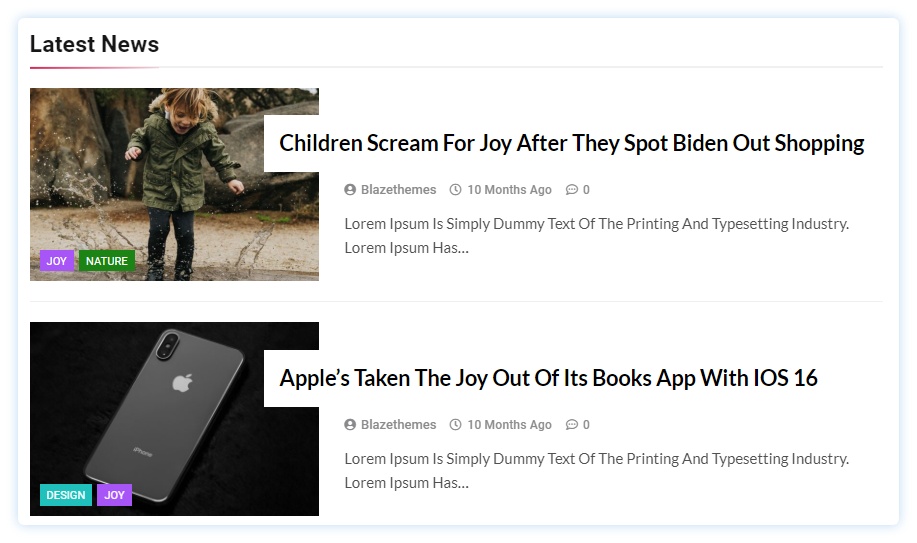
12.3.1. List Layout One

Pro Version
- Toggle to show post excerpt
- Change excerpt length to display
- Choose number of columns to show
- Choose available list layouts
12.3.1. List Layout One

12.3.2. List Layout Two

12.3.3. List Layout Three

12.3.4. List Layout Four
- Click to setting icon
- Change Block title
- Toggle to show post date, post author, post category, post comment
- Click to posts query pencil icon
- Change post orderby from dropdown
- Choose no. of posts to display
- To exclude post ids separate with commas or the enter key
- Select post by category or by title to show
- Choose available option to show all post, last 7 days, today, this week, last week, this month or last month
- Toggle to show view all icon
12.4.1. List Layout One

Pro Version
- Choose available filter layouts
12.4.1. List Layout One

12.4.2. List Layout Two

12.4.3. List Layout Three

12.4.4. List Layout Four

Pro Version
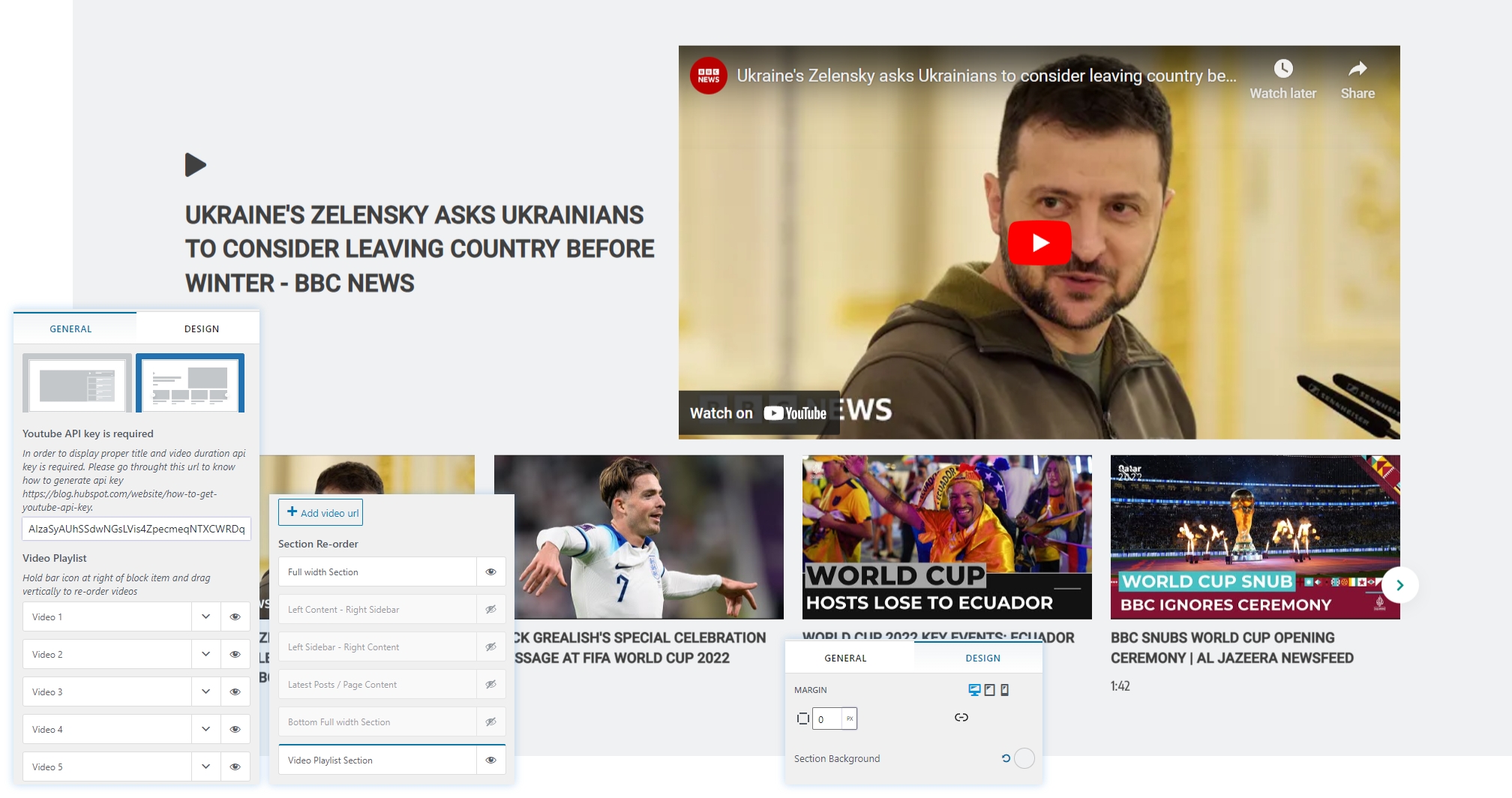
To work on Video Playlist
- Dashboard > Appearance > Customize > Front Section > Video Playlist
- Choose available layouts
- Generate Youtube API key to display proper title and video duration
- Paste your API key in empty box
- Add your video url as much as you want and also hold bar icon and drag vertically to re-order videos
- Click to Design option
- Customize margin and section background color, Gradient and image
12.5.1. List Layout One

12.5.2. List Layout Two
- Click to setting icon
- Change Block title
- Upload an advertisement image
- Choose URL to
- Choose ad link open in new tab and same tab from dropdown
- Choose link rel attribute value from dropdown

Pro Version
- Click to setting icon
- Past your shortcode in text field using any plugin that supports shortcode functionality

12. Your Opinions
Pro Version
To work on Your Opinion
- Dashboard > Appearance > Customize > Your Opinion
- Toggle to show opinions section
- Change section display on various pages
- Choose section title
- Click to add new opinion
- Hold bar icon and drag vertically to re-order the icons
- choose number of columns to display
- Click to Design Option
- Customize your opinion section margin and content padding
- Select section background and content background
- View Layout

13. Theme Footer
To work on Theme Footer
- Dashboard > Appearance > Customize > Theme Footer
- Toggle to enable footer section
- Choose available footer layouts
- Click to Design Option
- Choose border top style and color
- View

Pro Version
- Choose section width to full width or boxed width
- Choose border top style, width and color
- Choose text color / hover color
- Choose footer background color

14. Bottom Footer
To work on Bottom Footer
- Dashboard > Appearance > Customize > Bottom Footer
- Toggle to enable bottom footer
- Toggle to show bottom footer menu

Pro Version
- Toggle to show bottom social icons
- Change copyright text
- Click to Design Option
- Change test color
- Choose link color / hover color
- Change background color

15. Blog . Archive . Single
To work on Blog / Archive
- Dashboard > Appearance > Customize > Blog / Archive / Single > Blog / Archive
- Choose available archive layouts
- Toggle to show archive title prefix

Pro Version
- Choose available Archive layouts
- Choose number of words in excerpt
- Choose pagination type to default, number or ajax
- Hold the elements and drag vertically to re-order the elements
- Click to eye icon to hide the elements
- Hold the meta and drag vertically to re-order meta
- Click to eye icon to hide meta
- Click to design option
- Choose content background to solid color, gradient color or image

To work on Single Post
- Dashboard > Appearance > Customize > Blog / Archive / Single > Single Post
- Toggle to show related news
- Choose related news title

Pro Version
- Hold the elements and drag vertically to re-order the elements
- Click to eye icon to hide the elements
- Hold the meta and drag vertically to re-order meta
- Click to eye icon to hide meta
- Toggle to show related news
- Choose related news post layouts
- Choose filter by categories or tags
- Choose number of post to display
- Click to show hide featured image from check box
- Click to show related post on popup
- Click to Design Option
- Change Content background color
- Change font family, font size font weight of post title, post meta and post content

16. Pages
To work on 404
- Dashboard > Appearance > Customize > Pages > 404
- Upload 404 image

Pro Version
- Change 404 page title
- Change 404 content title
- Change 404 button label
- Choose 404 URL
- Click to design option
- Choose content background solid color, gradient color or image

Pro Version
To work on Search Page
- Dashboard > Appearance > Customize > Pages > Search Page
- Change search page prefix title
- Add search page title if nothing was found
- Type search page content if nothing was found
- Click to design option
- Choose content background solid color, gradient color or image

17. Colors
Color is such a fundamental part of the way we perceive the world. This is why one of the most powerful tools in a designer’s arsenal is color. It can either make or break a design; it can be the determining factor in engaging viewers or sending them promptly on their way.
Color Presets help you to get the variety of Shades of the selected Palette. You get the shades automatically for any new Color you modify in the Palette.
To work on Colors
- Dashboard > Appearance > Customize > Colors
- Change theme color
- Set Preset solid color and gradient color

18. Typography
Pro Version
Typography design serves many purposes, from making words legible to evoking emotion to creating a consistent brand identity. A brand logo that incorporates good typographic elements can result in consumers viewing the brand positively, and visually pleasing font pairings can make presentations more dynamic.
To work on Typography
- Dashboard > Appearance > Customize > Typography

19. Header Image
To work on Header Image
- Dashboard > Appearance > Customize > Header Image
- Click to add new image
- Choose previously uploaded header image by clicking randomize uploaded headers

20. Background
To work on Background
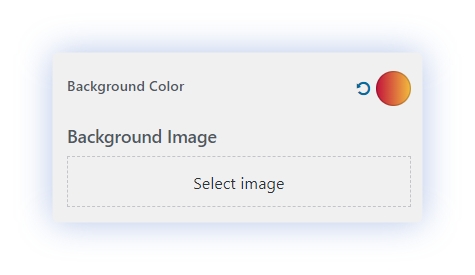
- Dashboard > Appearance > Customize > Background
- Change theme background color
- Select background image
21. Menu
To work on menu
- Dashboard > Appearance > Menus

22. Widgets
To work on Header Image
- Dashboard > Appearance > Widgets
- Click to add new widgets
- Search for “Author Info” in search area
- Drag and drop the widget in sidebar
- Choose author to display
- Add the widget title
- Add author name
- Add author image
- Add author tag and url
- Add author description

Pro Version
- Choose author layout to display

To work on Carousel Posts
- Dashboard > Appearance > Widgets
- Click to add new widgets
- Search for “Carousel Posts” in search area
- Drag and drop the widget in sidebar
- Add Widget title
- Choose the category from dropdown

Pro Version
- Enable slider item to auto slide
- Enable slider controller arrows
- Enable infinite loop
- Choose slider to slide in vertical or horizontal direction
- Choose available carousel layouts

To work on Category Collection
- Dashboard > Appearance > Widgets
- Click to add new widgets
- Search for “Category Collection” in search area
- Drag and drop the widget in sidebar
- Add widget title
- Choose the categories to display

Pro Version
- Add the news text
- Choose available categories collection layouts

To work on Popular Posts Slider
- Dashboard > Appearance > Widgets
- Click to add new widgets
- Search for “Popular Posts Slider” in search area
- Drag and drop the widget in sidebar
- Add widget title
- Select category from dropdown
- Enable slider item to auto slide
- View Layout

Pro Version
- Click to show slider controller arrows
- Enable infinite loop
- Choose slider direction to vertical or horizontal
- View Layout

To work on Post List
- Dashboard > Appearance > Widgets
- Click to add new widgets
- Search for “Post List” in search area
- Drag and drop the widget in sidebar
- Add widget title
- Select category from dropdown
- Choose number of posts to show

Pro Version
- Show post category
- Show post excerpt content
- Choose excerpt length to show
- Choose available layouts to show
- Choose to show AJAX load more button from checkbox

Pro Version
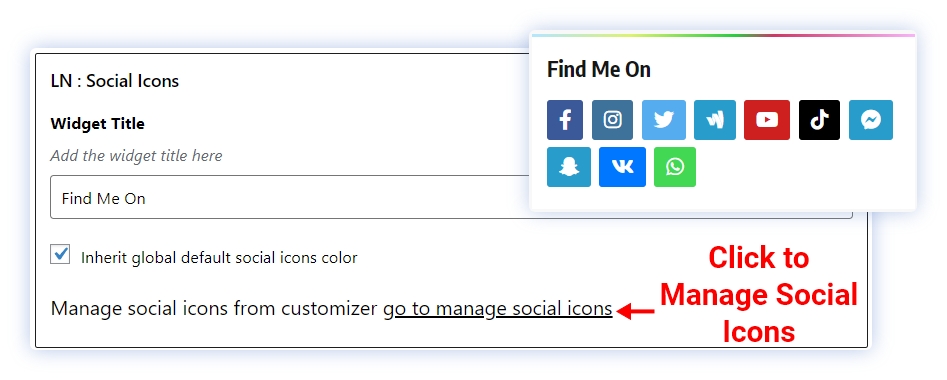
To work on Social Icons
- Dashboard > Appearance > Widgets
- Click to add new widgets
- Search for “Social Icons” in search area
- Drag and drop the widget in sidebar
- Customize Social Icons widget with available controls
Pro Version
To work on Tabbed Posts
- Dashboard > Appearance > Widgets
- Click to add new widgets
- Search for “Tabbed Posts” in search area
- Drag and drop the widget in sidebar
- Customize Tabbed Posts widget with available controls

Pro Version
To work on News Filter – Tabbed
- Dashboard > Appearance > Widgets
- Click to add new widgets
- Search for “News Filter – Tabbed” in search area
- Drag and drop the widget in sidebar
- Customize Tabbed Posts widget with available controls

To work on Posts Grid 2 Column
- Dashboard > Appearance > Widgets
- Click to add new widgets
- Search for “Posts Grid 2 Column” in search area
- Drag and drop the widget in sidebar
- Add widget title
- Choose category from dropdown
- Select number of posts to display

Pro Version
- Show post categories from checkbox
- Choose available layouts
- Show load more button from checkbox

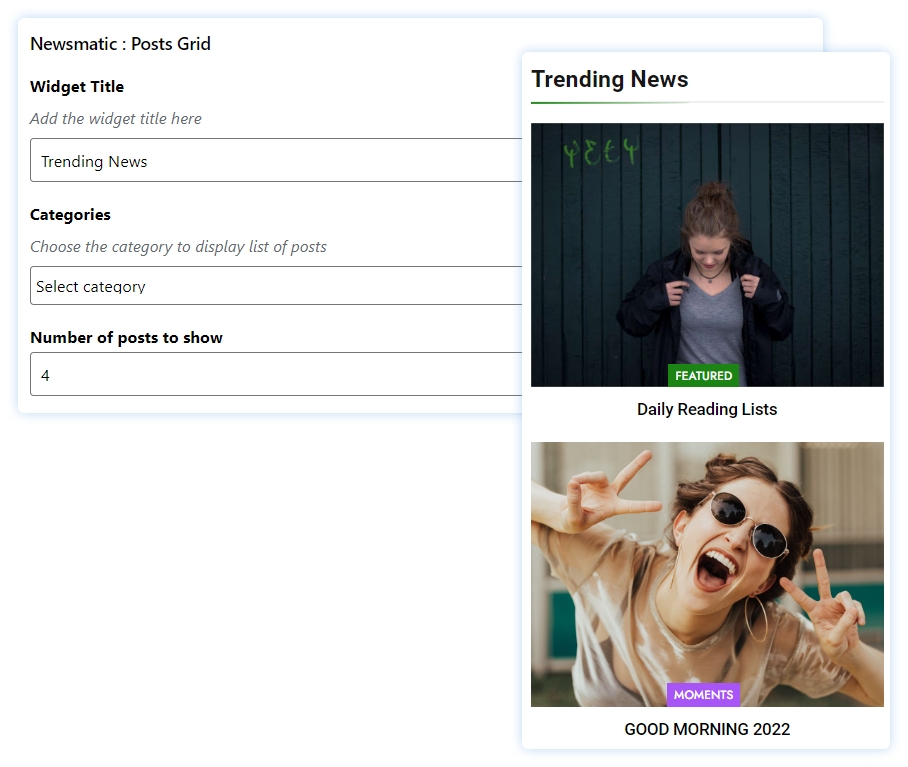
To work on Post Grid
- Dashboard > Appearance > Widgets
- Click to add new widgets
- Search for “Post Grid” in search area
- Drag and drop the widget in sidebar
- Add widget title
- Select category from dropdown
- Select number of posts to display
Pro Version
- Click to show post categories
- Click to show post excerpt content
- Choose excerpt length to show
- Click to show load more button

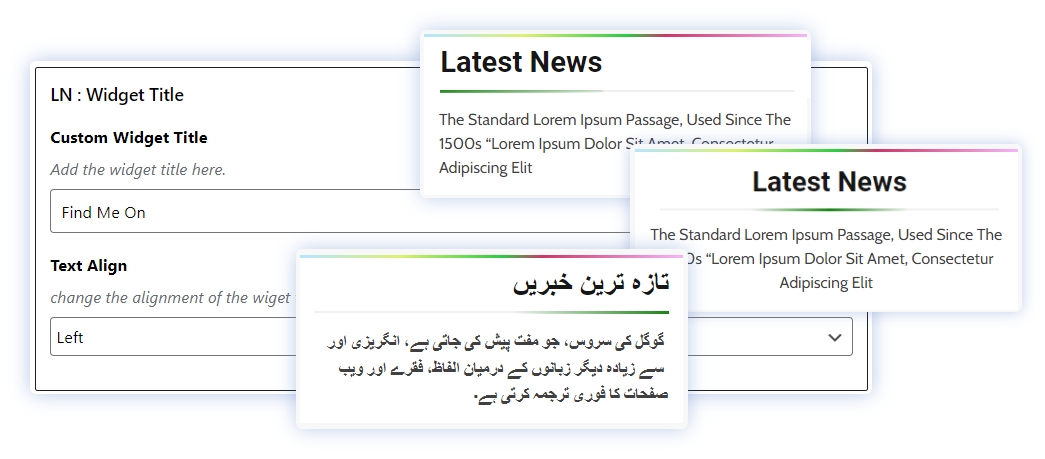
To work on Widget Title
- Dashboard > Appearance > Widgets
- Click to add new widgets
- Search for “Widget Title” in search area
- Drag and drop the widget in sidebar
- Add the widget title in title field
- Change the alignment of the widget title text to left, center and right
Pro Version
To work on Your Opinions
- Dashboard > Appearance > Widgets
- Click to add new widgets
- Search for “Your Opinions” in search area
- Drag and drop the widget in sidebar
- Customize Your Opinions widget with available controls

Pro Version
To work on Banner Ads
- Dashboard > Appearance > Widgets
- Click to add new widgets
- Search for “Banner Ads” in search area
- Drag and drop the widget in sidebar
- Customize Banner Ads widget with available controls

23. Homepage Settings
To work on Homepage Settings
- Dashboard > Settings > Reading

24. Yoast SEO Breadcrumbs
To work on Yoast SEO Breadcrumbs
- Dashboard > Customize > Yoast SEO Breadcrumbs
- Click to checkbox to show blog page in breadcrumbs
- Change breadcrumbs separator
- Change anchor text for the homepage
- Change prefix for breadcrumbs
- Change prefix for archive pages and prefix for search result pages
- change breadcrumb for 404 pages

To work on Social Icons
Design Tab
Pro Version
Design Tab